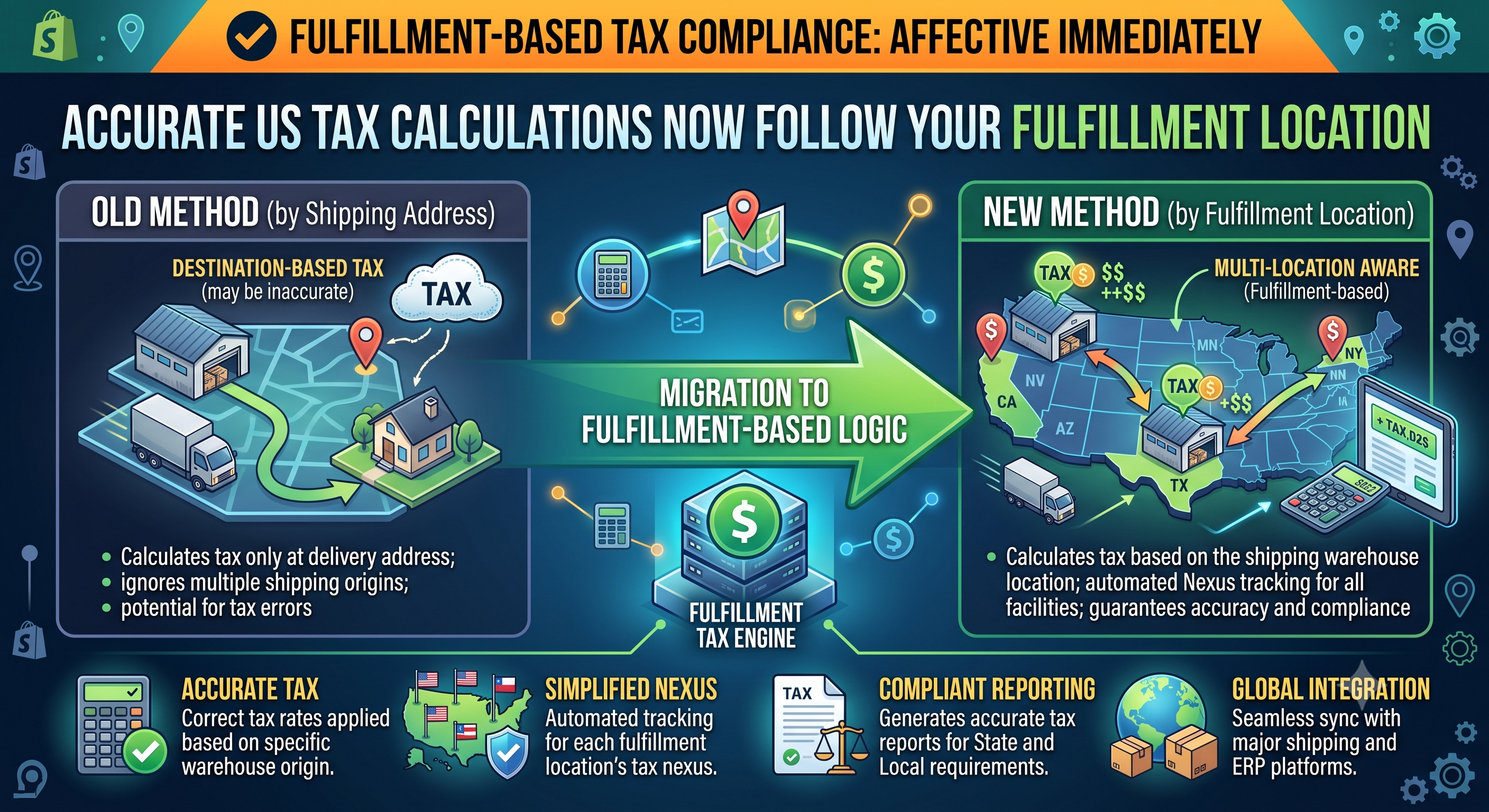
If you’ve ever struggled with mismatched sales‑tax reports because you ship from several warehouses—or you offer local pickup—Shopify’s latest tax update is a game‑changer. Effective immediately, tax is calculated using the exact fulfillment location selected by your order‑routing rules, and that location is recorded on the order itself. This post breaks down what changed, who needs to act, and how to confirm everything is set up correctly.
What’s Changing?
Previously, Shopify calculated US sales tax based on the shop’s primary address, even when an order was routed to a different fulfillment center or a local pickup point. The new logic ties tax calculation to the actual “ship‑from” location that your order‑routing settings pick for each order. For local pickup orders, the tax now reflects the pickup store’s address. The order record now includes a “ship‑from location” field, giving you an auditable trail for each transaction.
Why It Matters for Merchants
Sales‑tax rates can vary not only by the buyer’s destination but also by the origin of the shipment (especially for nexus rules in states like California and New York). When your tax was tied to a single shop address, you could end up over‑collecting or under‑collecting tax for orders shipped from secondary warehouses. The new behavior eliminates that gap, ensuring your tax collected matches the jurisdiction that actually applies, which simplifies filing and reduces the risk of audits.
For merchants that run multi‑location fulfillment, the update also improves reporting accuracy. The “Orders” page now shows the ship‑from location used for tax, so you can easily reconcile tax liabilities per warehouse in your accounting software.
Implications for Developers
If you build apps that read tax information, you’ll now see a new field on the Order object: tax_lines[].tax_source will reference the fulfillment location ID. The GraphQL Admin API also surfaces order.fulfillmentLocation (or order.pickupLocation for local pickup). Adjust any logic that assumed tax was always derived from the shop’s primary address.
For webhook consumers, the orders/create and orders/updated payloads now include source_location_id under shipping_address. Update your parsers to capture this ID if you need to map tax calculations back to a specific warehouse in downstream systems.
How to Verify & Adjust Your Order Routing Settings
Sample Configuration & API Check
Below is a quick GraphQL query you can run in the Shopify Admin API Explorer to confirm the ship‑from location used for tax on a given order:
graphql
query GetOrderTaxLocation($orderId: ID!) {
order(id: $orderId) {
id
name
fulfillmentLocation {
id
name
address {
countryCode
provinceCode
zip
}
}
taxLines {
priceSet {
shopMoney { amount currencyCode }
}
rate
}
}
}
If the fulfillmentLocation field returns a location other than your primary shop address, the tax calculation is already using the new logic. If it’s blank, double‑check that the order was routed through a location that has “Fulfillment” enabled.
Next Steps & Best Practices
• Audit historic orders – Export orders from the past quarter and compare the source_location_id with your tax filings. If discrepancies appear, you may need to file amended returns for the affected states.
• Update tax‑automation apps – Ensure any third‑party tax service (Avalara, TaxJar, etc.) is receiving the correct fulfillment location ID. Most providers have a “location‑aware” mode you can enable.
• Document routing rules – Keep a simple SOP that lists which products or shipping zones map to which fulfillment locations. This helps new team members understand why a specific tax rate was applied.
• Monitor Shopify status – The change rolled out on 2024‑09‑01, but Shopify may release minor tweaks. Subscribe to the developer changelog for any subsequent API version updates.
Conclusion
Accurate tax collection is a cornerstone of a healthy Shopify store, especially when you’re scaling across multiple warehouses or offering in‑store pickup. By tying tax calculations directly to the fulfillment location, Shopify eliminates a common source of error and gives you clearer data for filing and analytics. Take a few minutes today to verify your order‑routing rules, run a test query, and adjust any custom code that assumes tax comes from the shop’s primary address. Your finance team—and your peace of mind—will thank you.
Ready to put the new tax logic to work? Check your order‑routing settings now, and if you need a hand, reach out in the Shopify Community or drop a comment below. Happy selling!