

How to do? Step by Step
- Step 1
Prepare a video for your product; it needs the same ratio as your current image. For example, If you are using a product image ratio of 5x7 (500x700px or 1000x1400px). You also need to create a video size of 5x7
- Step 2
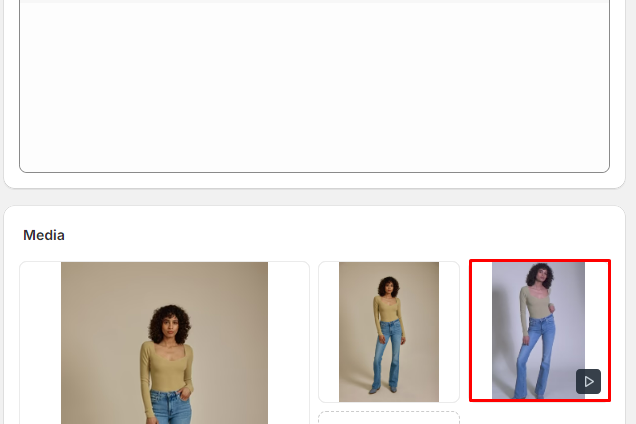
Upload this video into Shopify Product Media
- Step 3
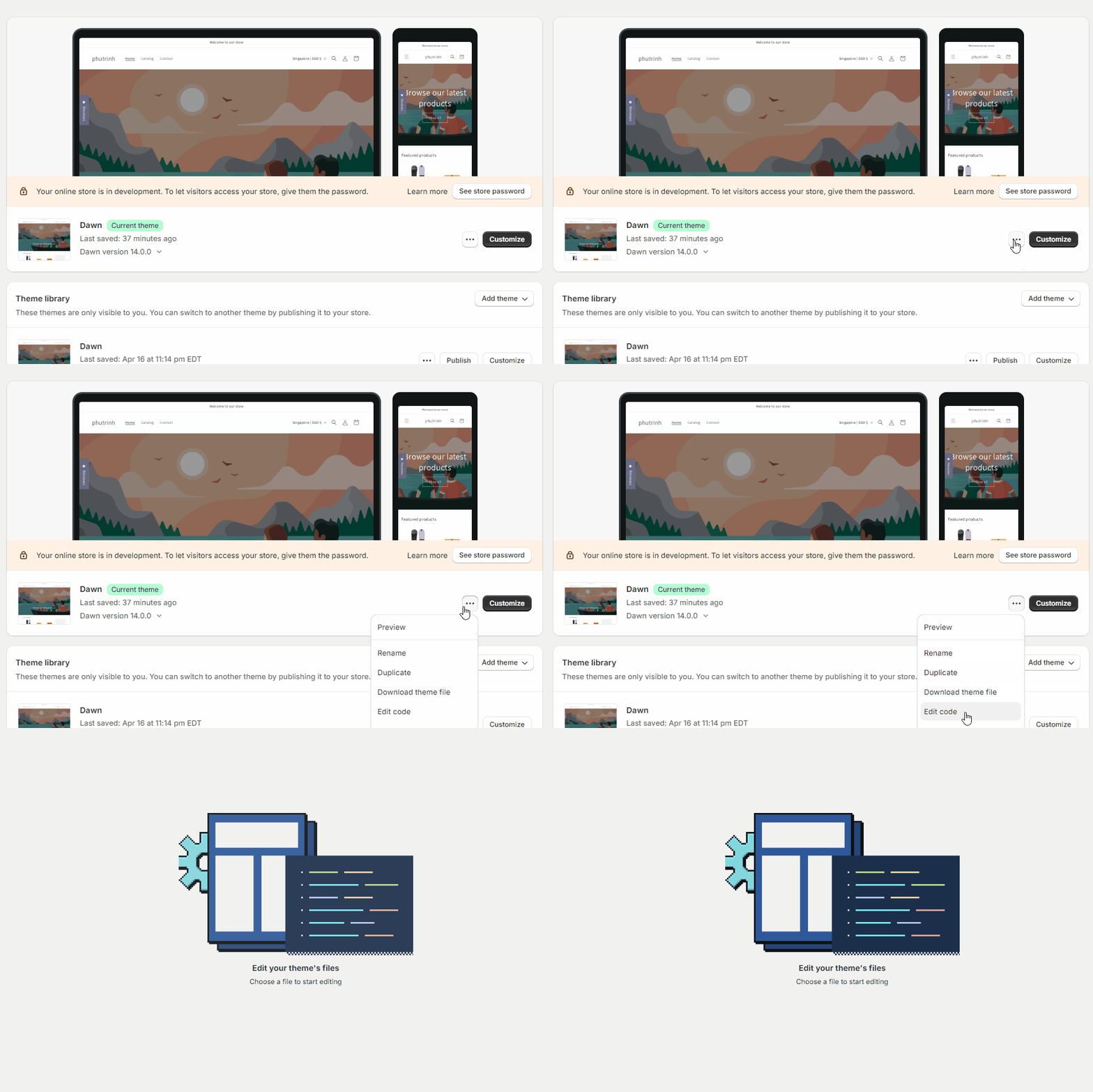
From Shopify Admin Dashboard > Online Store > Themes > ... button > Edit code
- Step #4
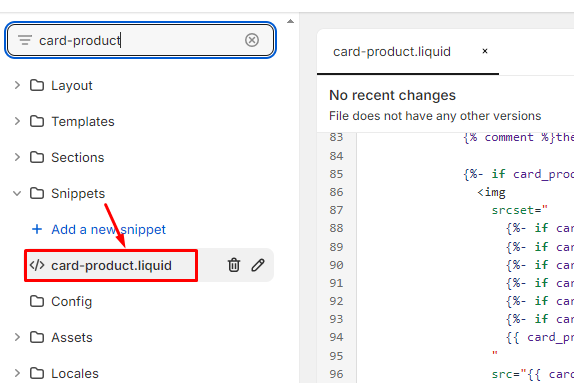
Search or Scroll the file list on the left to find the file name "card-product.liquid" within Snippets. (Depending on your store's theme, it will have different files. We will guide based on Dawn theme structure) .
- Step #5
Replace the code from line#85 to #104
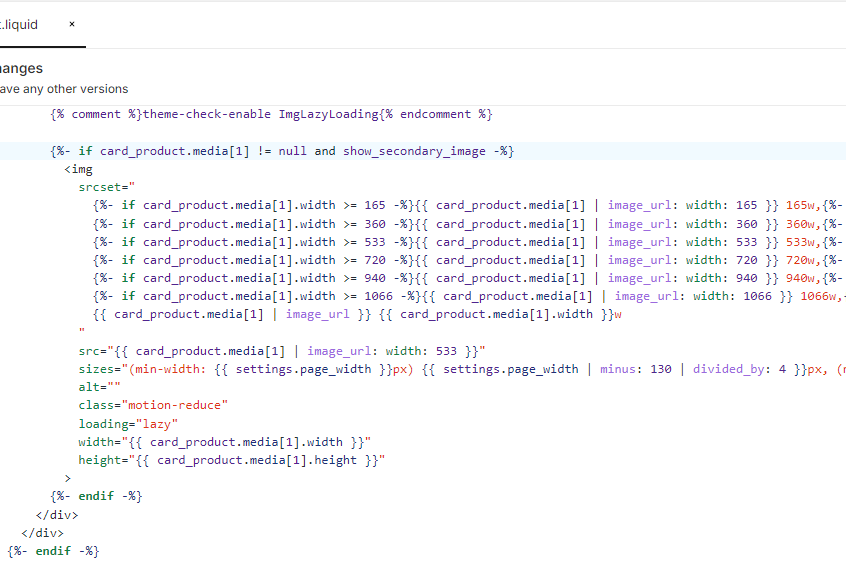
by the new code:
{% assign has_video = 0 %}
{% for media in card_product.media %}
  {% if media.media_type == 'video' %}
    {% assign has_video = forloop.index0 %}
    {% break %}
  {% endif %}
{% endfor %}
{% if has_video == 0 %}
  {%- if card_product.media[1] != null and show_secondary_image -%}
    <img
      srcset="
        {%- if card_product.media[1].width >= 165 -%}{{ card_product.media[1] | image_url: width: 165 }} 165w,{%- endif -%}
        {%- if card_product.media[1].width >= 360 -%}{{ card_product.media[1] | image_url: width: 360 }} 360w,{%- endif -%}
        {%- if card_product.media[1].width >= 533 -%}{{ card_product.media[1] | image_url: width: 533 }} 533w,{%- endif -%}
        {%- if card_product.media[1].width >= 720 -%}{{ card_product.media[1] | image_url: width: 720 }} 720w,{%- endif -%}
        {%- if card_product.media[1].width >= 940 -%}{{ card_product.media[1] | image_url: width: 940 }} 940w,{%- endif -%}
        {%- if card_product.media[1].width >= 1066 -%}{{ card_product.media[1] | image_url: width: 1066 }} 1066w,{%- endif -%}
        {{ card_product.media[1] | image_url }} {{ card_product.media[1].width }}w
      "
      src="{{ card_product.media[1] | image_url: width: 533 }}"
      sizes="(min-width: {{ settings.page_width }}px) {{ settings.page_width | minus: 130 | divided_by: 4 }}px, (min-width: 990px) calc((100vw - 130px) / 4), (min-width: 750px) calc((100vw - 120px) / 3), calc((100vw - 35px) / 2)"
      alt=""
      class="motion-reduce"
      loading="lazy"
      width="{{ card_product.media[1].width }}"
      height="{{ card_product.media[1].height }}"
    >
  {%- endif -%}
{% else %}
  {% if card_product.media[has_video].sources[0].url contains '.mp4' %}
    <video src="{{card_product.media[has_video].sources[0].url}}" loop muted playsinline autoplay></video>
  {% else %}
    <video src="{{card_product.media[has_video].sources[1].url}}" loop muted playsinline autoplay></video>
  {% endif %}
{%- endif -%}
- Step #6
Save file
- Step #7
Open the Assets/component-card.css file or any CSS file to work with the Product Card. Add new css lines
.card-wrapper video{
  display:none !important;
}

.card-wrapper:hover video{
  display:block !important;
}Explanation
{% assign has_video = 0 %}
{% for media in card_product.media %}
  {% if media.media_type == 'video' %}
    {% assign has_video = forloop.index0 %}
    {% break %}
  {% endif %}
{% endfor %}
- This code is used to detect whether Product Media has a video or not. If yes, show the video; if no, show hover as an image.
- has_video will return the position of the video in the Media
- sources[0] use for short video and sources[1] use for long video