
Connect GitHub to Shopify

Connecting GitHub to Shopify allows you to version control your theme code, collaborate with your team, and deploy changes smoothly

Connect GitHub to Shopify
0 sections

Why Connect GitHub to Shopify?

🔹 Version Control – Track changes, revert edits, and prevent code loss. 🔹 Collaboration – Work with multiple developers seamlessly. 🔹 Safe Deployment – Test updates before going live. 🔹 Automated Sync – Push changes directly from GitHub to Shopify. 🔹 Better Code Management – Keep Liquid, CSS, and JS organized.

Connecting GitHub to Shopify ensures efficiency, security, and smoother development. 🚀

Step 1: Set Up a GitHub Repository for Your Shopify Theme

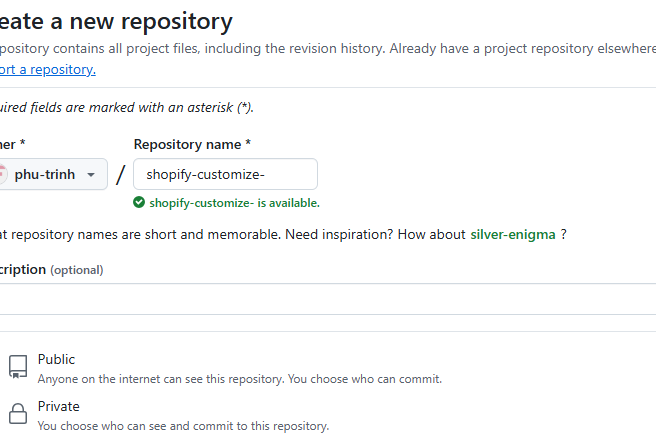
  • Go to GitHub and log in.
  • Click New Repository → Enter a name (e.g., shopify-theme).
  • Choose Public or Private, then click Create Repository.
  • Copy the repository HTTPS or SSH URL.
  • Step 2: Enable GitHub Integration in Shopify

  • Log in to Shopify Admin.
  • Navigate to Online StoreThemes.
  • Scroll down to the Theme Library section.
  • Click the Add Theme button.
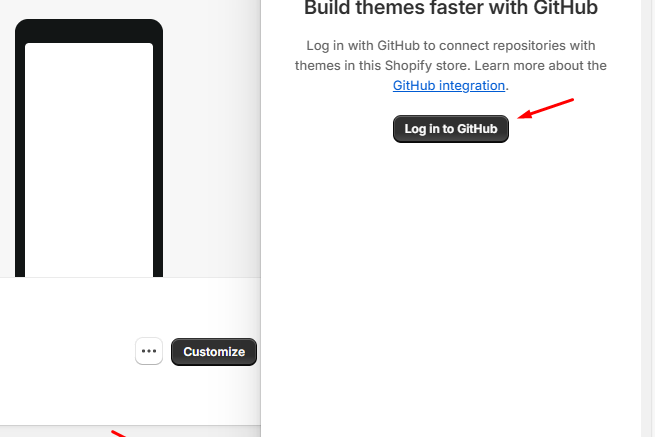
  • Select Connect from GitHub.
  • Authorize Shopify to access your GitHub account.
  • Select your GitHub repository and branch (e.g., main).
  • Click Connect to link your Shopify store to GitHub.
  • Step 3: Push Your Shopify Theme to GitHub

  • Clone your repository locally:
  • html
    git clone https://github.com/your-username/shopify-theme.git
    cd shopify-theme
  • Download your theme code from Shopify using the Shopify CLI:
  • html
    shopify theme pull
  • Add and commit your theme files to GitHub:
  • html
    git add .
    git commit -m "Initial Shopify theme upload"
    git push origin main

    Step 4: Manage Your Shopify Theme with GitHub

    Make Changes Locally

  • Edit theme files in your local code editor (e.g., VS Code).
  • Save changes and push them to GitHub:
  • html
    git add .
    git commit -m "Updated header section"
    git push origin main
  • Shopify automatically syncs changes from GitHub to your store.
  • Step 5: Create a Staging Branch for Safe Testing

    To test changes before deploying:

  • Create a new branch:
  • html
    git checkout -b staging
  • Make edits and push the branch:
  • html
    git push origin staging
  • In Shopify, switch to the staging branch for testing.
  • After testing, merge to main:
  • html
    git checkout main
    git merge staging
    git push origin main

    Step 6: Roll Back to a Previous Version (If Needed)

    If a new update breaks the theme:

  • Find the last working commit:
  • html
    git log
  • Revert to a previous version:
  • html
    git revert <commit-hash>
    git push origin main
  • Shopify will update your theme automatically.
  • Final Thoughts

    Version control keeps your Shopify theme safe. ✅ Branches help with testing before deployment. ✅ GitHub integration makes Shopify development faster & organized.

    🚀 Now you can easily manage your Shopify theme with GitHub!

    Tags

    Related Articles

    10 Essential Shopify SEO Tips to Boost Your Store's Traffic
    Tips & Tricks

    10 Essential Shopify SEO Tips to Boost Your Store's Traffic

    Optimize your Shopify store for search engines with these 10 actionable SEO tips, covering setup, keywords, on-page optimization, and technical fixes. Improve your store's visibility, drive more traffic, and increase sales. Get started with Shopify SEO today!

    August 16, 20263 min
    Adding a Smooth Back-to-Top Button to Your Shopify Theme
    Tips & Tricks

    Adding a Smooth Back-to-Top Button to Your Shopify Theme

    Learn how to add a smooth back-to-top button to your Shopify theme using lightweight CSS and JS, improving navigation and enhancing user experience.

    August 13, 20263 min
    Shopify Requires Expiring Offline Access Tokens for Public Apps: What Developers Need to Know
    Tips & Tricks

    Shopify Requires Expiring Offline Access Tokens for Public Apps: What Developers Need to Know

    Shopify is making an important change to how public apps authenticate with the Admin API

    August 8, 202630 min
    Understanding Shopify Theme Check: LiquidHTML/Complexity
    Tips & Tricks

    Understanding Shopify Theme Check: LiquidHTML/Complexity

    Although this isn't a compilation or runtime error, it's an important indicator that your Liquid file has become too complex, making it harder to read, maintain, and extend over time

    July 30, 202620 min