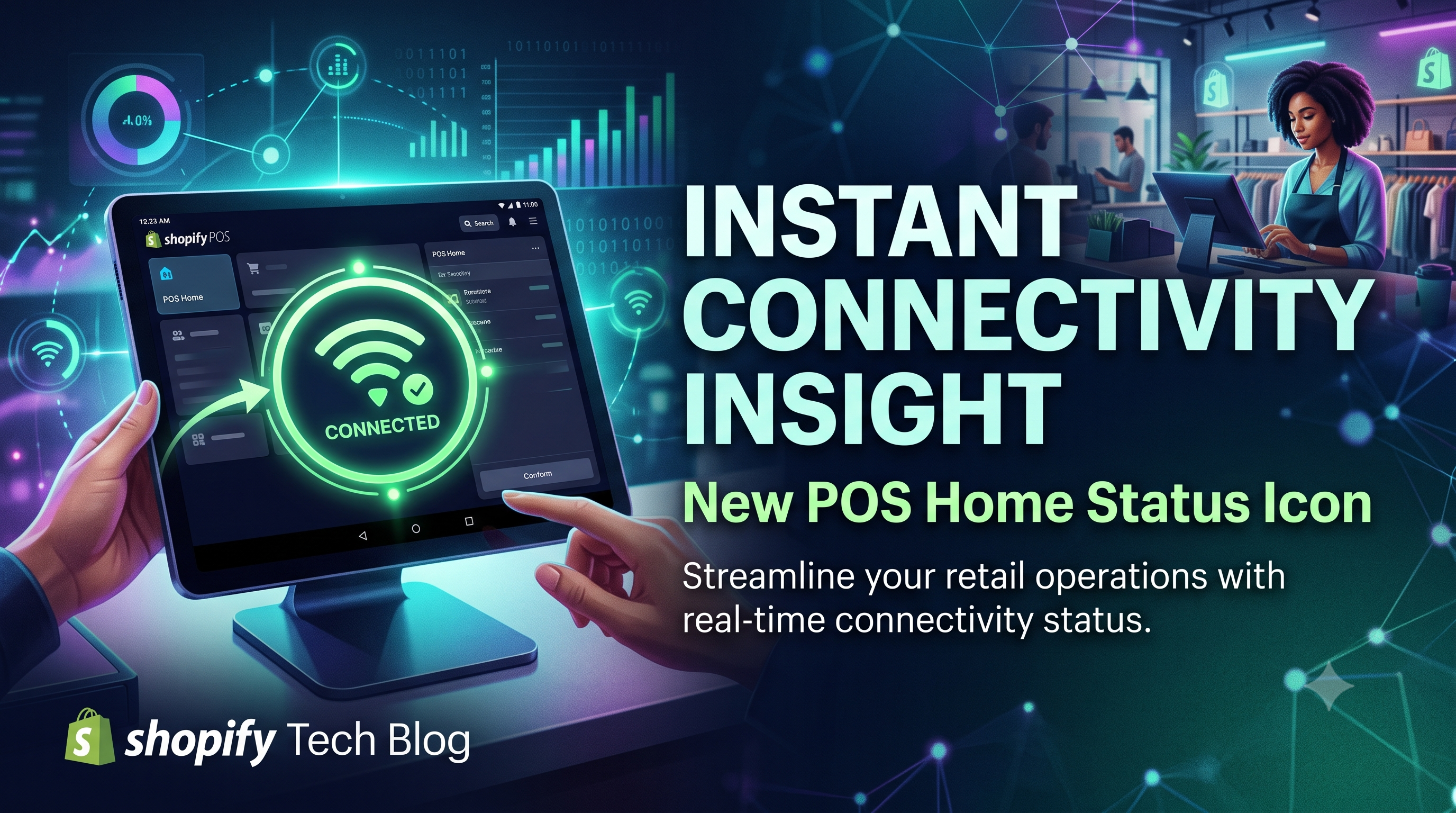
If you’ve ever started a sale only to discover your device lost its internet connection mid‑transaction, you know how stressful that can be. Shopify listened and delivered a tiny yet powerful visual cue that eliminates that guesswork. Starting with Shopify POS version 11.14, a new connectivity status icon appears directly on the POS Home screen, giving staff an instant visual confirmation that the device is online and ready to process sales. In this post we’ll break down what the change looks like, who it matters to, and how you can leverage it to keep checkout smooth for every customer.
What’s New? A Quick Overview
The update adds a small, universally recognizable icon—typically a green dot or check‑mark—next to the device name on the POS Home screen. When the device is fully connected to Shopify’s cloud, the icon turns green; if the connection drops, it switches to a warning color, prompting staff to troubleshoot before they begin a sale. The feature is baked into the POS app and rolls out automatically to all users on version 11.14 or later. No additional configuration, settings toggle, or app install is required; the icon just appears the next time the app launches.
Who Benefits: Merchants vs. Developers
This change is squarely aimed at merchants and their frontline staff. Store owners gain peace of mind knowing that their team can verify connectivity at a glance, reducing the risk of lost sales or refund headaches. Developers, on the other hand, see minimal impact—there’s no new API endpoint, webhook, or schema change to accommodate. The only developer‑related consideration is to ensure any custom POS extensions or in‑store workflows respect the existing POS version checks, so the status icon displays correctly for users on the supported version.
Why This Matters: Reducing Transaction Disruptions
A disconnected device can halt a checkout, force staff to switch to a backup device, or even lead to abandoned carts. By surfacing connectivity status up front, the new icon encourages staff to resolve network issues—whether that means moving closer to Wi‑Fi, restarting the router, or switching to a cellular hotspot—before a customer begins scanning items. The result is fewer interruptions, higher conversion rates, and a smoother customer experience, especially during peak hours when every second counts.
How to Verify the New Status Icon
Next Steps and Best Practices
• Confirm all POS devices are updated to version 11.14 or later. You can enforce this in the Shopify admin under Settings → POS devices, selecting “Auto‑update POS app.” • Train staff to glance at the connectivity icon during opening routines and before busy periods. Incorporate it into your standard operating procedure checklist. • If you manage custom POS extensions, add a version guard: only load your extension when the POS version is ≥ 11.14, ensuring the status icon is present for users. • Keep an eye on Shopify’s changelog for future enhancements—today’s icon may evolve into richer diagnostics or a clickable health dashboard.
Conclusion
A tiny status icon may seem modest, but its impact on checkout reliability is significant. By giving merchants an at‑a‑glance view of device connectivity, Shopify helps prevent the dreaded “Oops, I lost the connection” moment that can cost time and sales. Update your POS devices, brief your team, and start enjoying smoother transactions today. Got questions or want to share how the new icon helped your store? Drop a comment below or reach out on the Shopify Community forums—let’s keep the conversation going!