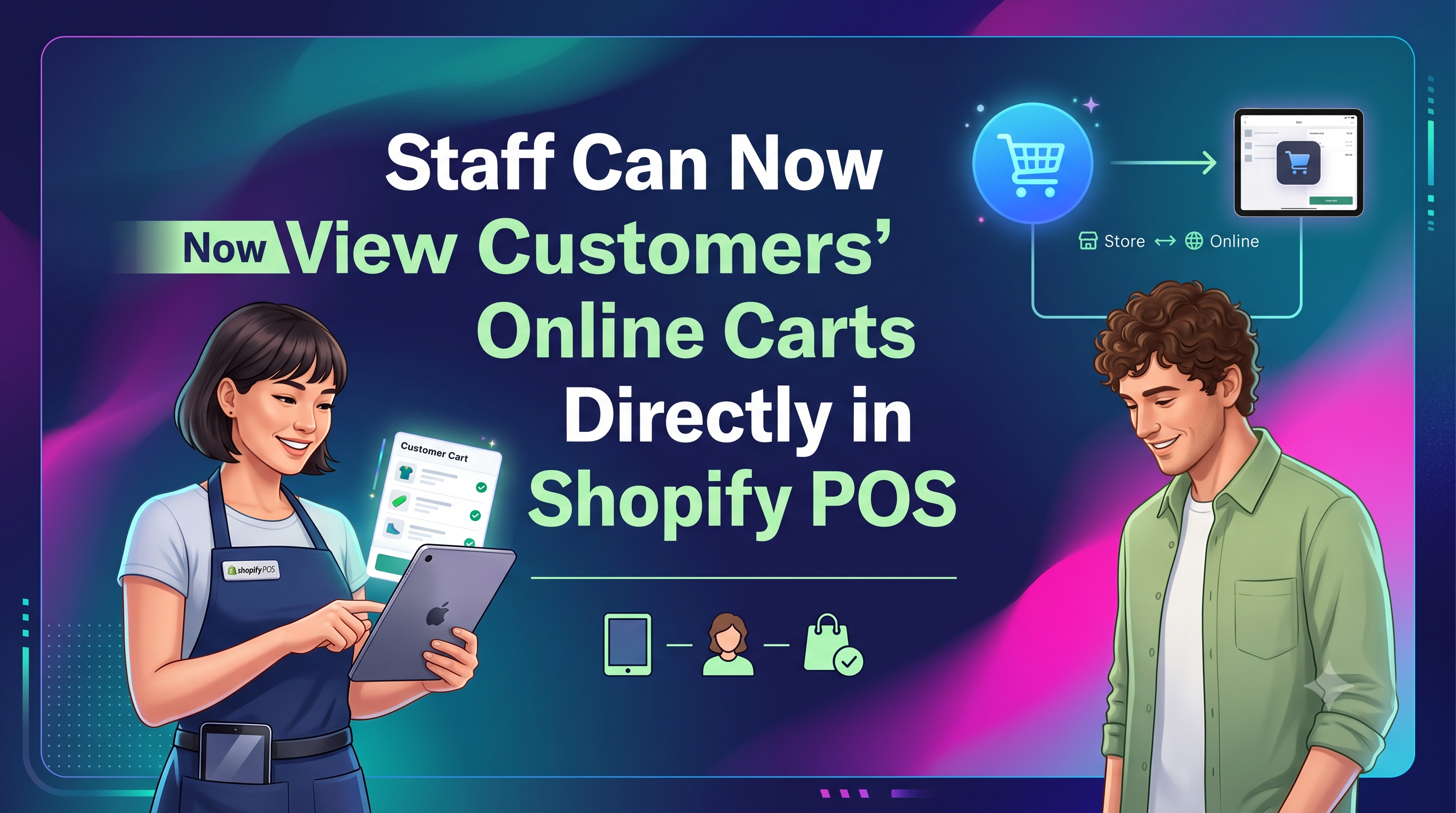
Shopify’s latest POS update (v11.14) gives your in‑store team a new superpower: the ability to pull up an identified customer’s online cart right inside the POS interface. This means staff can spot abandoned items, answer product questions, and close the sale on the spot. Below we break down what changed, who needs to act, and how to get the most out of this feature.
What’s New?
In Shopify POS version 11.14, permitted store staff can now view the items a known customer has left in an online cart (abandoned checkout) when that customer checks in at a physical location. The view is limited to the cart contents—browsing history remains private.
Who’s Affected?
• Merchants & store owners – gain a new tool to recover abandoned carts and increase foot‑traffic conversion rates.
• POS staff – can now proactively offer assistance (size guidance, product details) based on the customer’s pending items.
• Developers – while the feature is UI‑driven, you may need to adjust custom POS apps or permission scopes to respect the new “View abandoned checkouts” setting.
How to Enable the Feature
If you manage permissions via the API, the relevant scope is write_customers. Below is a sample GraphQL mutation to add the permission to a staff role:
graphql
mutation roleUpdate($roleId: ID!, $permissions: [PermissionInput!]!) {
roleUpdate(id: $roleId, input: { permissions: $permissions }) {
role {
id
name
permissions
}
userErrors { field message }
}
}
# Example variables
# {
# "roleId": "gid://shopify/StaffRole/123456789",
# "permissions": [{"name": "VIEW_ABANDONED_CHECKOUTS"}]
# }
What It Means for Developers
Your custom POS extensions now have a clear contract: if the staff member’s role includes the new permission, the POS UI will surface the abandoned cart data. Ensure any private APIs you expose respect the same permission check, otherwise you could expose cart data to unauthorized users.
For developers pulling abandoned checkout data programmatically, use the existing Checkout API. The only change is that the data can now be surfaced in‑store, so you might want to add a flag in your UI to indicate “online cart visible in POS”.
Practical Tips for Merchants
• Identify customers early – encourage email sign‑ups at checkout so the POS can match them to an online cart.
• Train staff – teach them how to locate a customer’s cart in POS and how to use that insight to upsell or answer questions.
• Set location context – POS sessions must have a location selected; make sure each terminal is properly configured.
• Monitor conversion – track how many abandoned carts are completed in‑store after the feature rolls out to measure ROI.
Conclusion & Next Steps
The new “View abandoned checkouts” permission bridges the online‑offline gap, turning a missed checkout into a live sales opportunity. Enable the setting today, train your team, and watch your in‑store conversion rates climb. Have questions or need help adjusting custom POS apps? Reach out to our Shopify experts or drop a comment below—let’s get those carts closed!